CAD to BIM Conversion: Process, LOD and What to Expect
How CAD to BIM conversion works: the inputs you need, how drawings are checked, which LOD to ask for, what drives effort and common pitfalls.
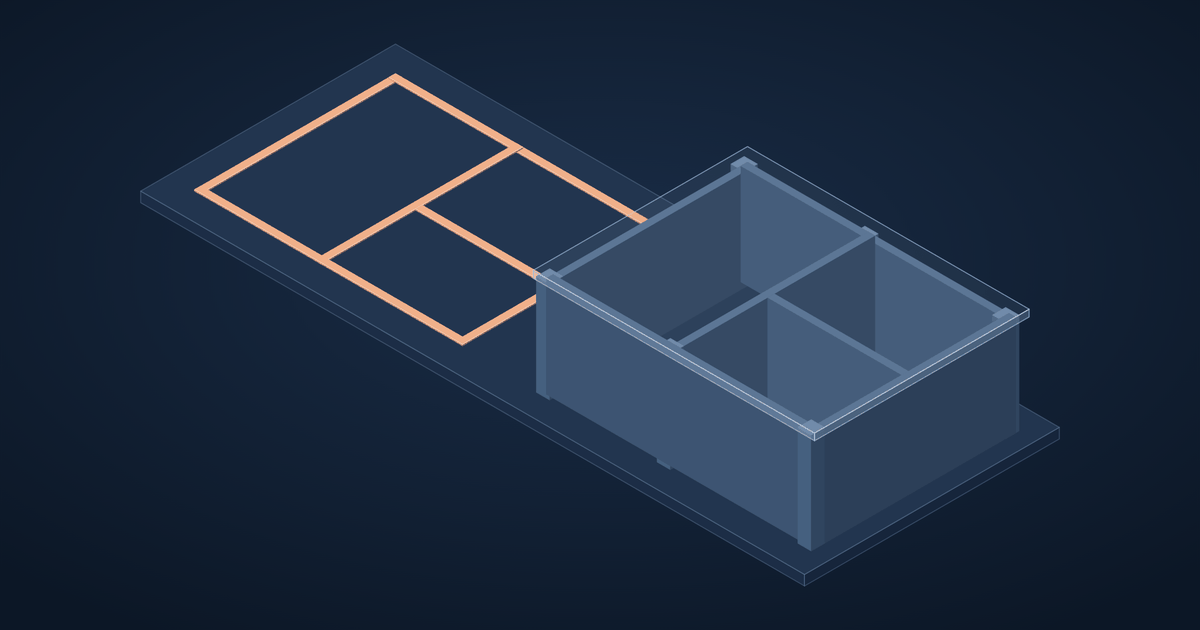
CAD to BIM conversion turns existing 2D drawings, in DWG or PDF, into an intelligent 3D model, usually in Revit. It is used to coordinate new services in an existing building, to plan a refurbishment, to give a facility team a working model, or to bring a project that started in 2D into a BIM workflow.
When CAD to BIM makes sense
- Refurbishments and fit-outs, where new MEP has to fit around existing structure
- Projects switching to BIM mid-design, often because an authority or client requires it
- Facility management, where an owner wants a model of the building and its plant
- Portfolio records for owners with many buildings drawn in 2D
If the drawings don't reflect what was built, consider scan to BIM instead or as well: a laser survey captures the building as it is, and the model is built from the point cloud.
What you need to provide
The quality of the model depends on the inputs:
- Floor plans, sections and elevations for every level, ideally in DWG
- Structural drawings: grids, column and beam sizes, slab levels
- MEP drawings if services are to be modelled
- Your standards: Revit version, template, naming and LOD
- Known differences: notes of anything built differently from the drawings
PDF drawings work, but DWG is faster and more accurate because dimensions can be read directly.
How the conversion runs
- Drawing review. Drawings are checked against each other. Plans that don't match sections, missing levels and conflicting dimensions are listed as questions before modelling starts.
- Set-up. Levels, grids and shared coordinates are created in your template.
- Structure and architecture. Columns, beams, slabs, walls, openings, stairs and roofs are modelled.
- MEP, if in scope: main ducts, pipes, trays and plant to the agreed LOD.
- Checks. The model is compared against the drawings sheet by sheet, and views and sheets are set up as agreed.
- Delivery. Native RVT, plus IFC and DWG exports if needed, with a list of assumptions made.
Which LOD should you ask for?
For most CAD to BIM work, LOD 300 is right: elements at their correct size and position, ready for drawings and coordination. Ask for LOD 350 for the services you want to coordinate in detail, and only ask for more if something will be fabricated from the model. Our LOD guide explains each level.
What affects time and cost
- Building size and number of levels
- Complexity: curved walls, sloping roofs and irregular structure take longer than repetitive floors
- Disciplines included: architecture only, or structure and MEP too
- Quality of the drawings: contradictions take time to resolve
- LOD and information required: parameters for schedules or facility management add effort
A short sample, such as one typical floor, is the most reliable way to get an accurate quote and check quality.
Common pitfalls
- Assuming the drawings are as built. Old drawings rarely match the building exactly; say so in the brief.
- Not agreeing what to model. Decide early whether furniture, small pipes and conduits are included.
- Skipping shared coordinates. Without them the model won't line up with other disciplines or a survey.
How we help
We convert DWG and PDF drawings into Revit models for architects, consultants, contractors and building owners, and coordinate them with new MEP and structural work. See our BIM outsourcing services or send a sample floor for a quote.